Saturday, 9 May 2015

Download free calendars for Home, School, and Business

Browse our collection of free printable calendars and calendar template. In addition to our originalExcel Calendar Template, you can find new designs on the year-specific pages listed below. Check out our printable calendars to download a PDF calendar, or continue browsing below to find other schedules, planners, and calendars.
2015 Calendars2016 Calendars2017 Calendars2018 Calendars

Featured Calendar Pages

Easily print ready-made calendars. We have a variety of monthly and yearly calendars in PDF format, so you can download and print without any fuss.
Easy-to-edit calendars for 2015
This is our original calendar template for Excel. Each month is on a separate worksheet and a yearly calendar is included for listing main events.

Popular Calendar Templates


A collection of Excel templates lets you create a full-year calendar for almost any year.
Download a collection of school calendar templates for Excel.
Create a schedule of events with mini calendars that highlight event dates.
Create printable 14-month calendars for personal or school use.
Create and print a monthly calendar by choosing a month and year.
This is our most advanced free calendar template. Choose any year or starting month. Includes some holidays, as well.
A theme-enabled blank calendar template for Excel 2007 or later.
Create your own photo calendar with this template.
Create custom weekly schedules for home, school, or the office.
Print a yearly calendar to list the birthdays for your family, class, or office.
List the birthdays for your class or relatives once. Then, print the calendar for any year and start month.
Create a fiscal year calendar for any year and start date.
This calendar template lets you create and print a calendar without any breaks between months. Great for project planning.
Track your period with this simple yearly calendar to help you make better predictions for the future.
For women wanting to have children. Estimates future ovulation dates and fertility windows.
Print a 3-year calendar for reference or planning. Enter the year and starting month. Choose Sunday- or Monday-first. Includes 4 different designs.


A printable monthly calendar template for Microsoft Word. Includes 12 months on separate pages.

Excel Templates

Looking for free Microsoft Excel ® templates? This page lists all the popular spreadsheet templates and calculators created by Vertex42.com, along with other places where you can find free Excel templates and spreadsheets. If you are looking for solutions for your business, see the Business Templates page.

Featured Excel Templates


Calendars & Schedules


Monday, 4 May 2015

Most popular add-ins for MS Excel.

logo ASAP Utilities

Save time with ASAP Utilities for Excel

“The most popular add-in for Excel users”

ASAP Utilities is a powerful Excel add-in that fills the gaps in Excel.
Since 1999 it has grown to become probably one of the world's most popular add-ins for MS Excel.

“A must have for anyone who spends time in Excel”

Worldwide 250,000+ users and 12,350+ organizations use ASAP Utilities. 
We truly believe that ASAP Utilities is a must in every office. It's guaranteed that more than a few of the tools will be just what you've been looking for to fill the gaps in Excel.
Download your free trial and discover why. We also offer a free Home & Student edition for home projects, schoolwork and use by charitable organizations.

Do more and save time in Excel with these popular tools

The tools from ASAP Utilities add new functionality to Excel and are guaranteed to save you time and speed up your work.
A few of our most popular tools are:
The number of features in ASAP Utilities (300+) may seem a bit overwhelming, but taking a few minutes just to look everything over works wonders. You can add the tools that you like best to your favorites menu and assign your own shortcuts for quick access. You can also quickly search and start a tool without going through the menu.

Quick Start: How to get the best out of ASAP Utilities

Discover how ASAP Utilities makes YOU rock in Excel.
Frequently we write a new tip on our website and blog to show you how to benefit from the tools in ASAP Utilities.

Choose your language of ASAP Utilities

In ASAP Utilities you can choose between the following languages:
ASAP Utilities is available in the languages English, Dutch, German, Spanish and French and works with all international versions of Excel. This means you can use ASAP Utilities in the English version of Excel but also in international versions such as German, French, Italian, Dutch, Korean, Danish, Spanish, Polish, Arabic, Russian, Chinese etc. etc. Choose language

Download our Business trial or free Home&Student edition

Download our fully functional 90-day Business trial or the free Home&Student edition (for home projects, schoolwork and use by charitable organizations). The latest version of ASAP Utilities, 5.5.1, was released on December 10, 2014.

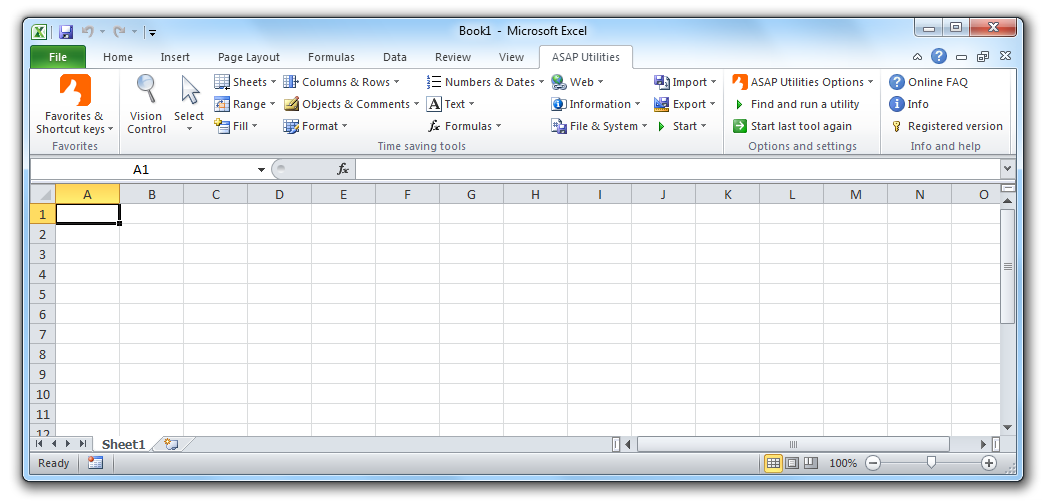
ASAP Utilities installs and upgrades easily and creates its own submenu in Excel from which you can start the tools:
Excel 2010 with ASAP Utilities in the menu

Enthusiasm and 5 Star rating

PC Magazine called ASAP Utilities “the one essential add-in for all Excel users” in its 2005 Ultimate Utility Guide and rated ASAP Utilities 5 stars: their maximum rating. The 5 stars were given in their Annual Utility Superguide 2006 again.
Read the awards & reviews from magazines, newsletters and radio shows or just see what our users say.

Thursday, 23 April 2015

Excel keyboard shortcuts

This list gives you a glance of (nearly) all shortcut combinations in Excel. Please take the time to read it. I'm sure you'll find many of them useful. 

Excel shortcuts

Shortcut keyActionMenu equivalent commentsversion
Ctrl+ASelect AllNoneAll
Ctrl+BBoldFormat, Cells, Font, Font Style, BoldAll
Ctrl+CCopyEdit, CopyAll
Ctrl+DFill DownEdit, Fill, DownAll
Ctrl+FFindEdit, FindAll
Ctrl+GGotoEdit, GotoAll
Ctrl+HReplaceEdit, ReplaceAll
Ctrl+IItalicFormat, Cells, Font, Font Style, ItalicAll
Ctrl+KInsert HyperlinkInsert, HyperlinkExcel 97/2000 +
Ctrl+NNew WorkbookFile, NewAll
Ctrl+OOpenFile, OpenAll
Ctrl+PPrintFile, PrintAll
Ctrl+RFill RightEdit, Fill RightAll
Ctrl+SSaveFile, SaveAll
Ctrl+UUnderlineFormat, Cells, Font, Underline, SingleAll
Ctrl+VPasteEdit, PasteAll
Ctrl WCloseFile, CloseExcel 97/2000 +
Ctrl+XCutEdit, CutAll
Ctrl+YRepeatEdit, RepeatAll
Ctrl+ZUndoEdit, UndoAll
F1HelpHelp, Contents and IndexAll
F2EditNoneAll
F3Paste NameInsert, Name, PasteAll
F4Repeat last actionEdit, Repeat. Works while not in Edit mode.All
F4While typing a formula, switch between absolute/relative refsNoneAll
F5GotoEdit, GotoAll
F6Next PaneNoneAll
F7Spell checkTools, SpellingAll
F8Extend modeNoneAll
F9Recalculate all workbooksTools, Options, Calculation, Calc NowAll
F10Activate MenubarN/AAll
F11New ChartInsert, ChartAll
F12Save AsFile, Save AsAll
Ctrl+:Insert Current TimeNoneAll
Ctrl+;Insert Current DateNoneAll
Ctrl+"Copy Value from Cell AboveEdit, Paste Special, ValueAll
Ctrl+’Copy Formula from Cell AboveEdit, CopyAll
ShiftHold down shift for additional functions in Excel’s menunoneExcel 97/2000 +
Shift+F1What’s This?Help, What’s This?All
Shift+F2Edit cell commentInsert, Edit CommentsAll
Shift+F3Paste function into formulaInsert, FunctionAll
Shift+F4Find NextEdit, Find, Find NextAll
Shift+F5FindEdit, Find, Find NextAll
Shift+F6Previous PaneNoneAll
Shift+F8Add to selectionNoneAll
Shift+F9Calculate active worksheetTools, Options, Calculation, Calc SheetAll
Ctrl+Alt+F9Calculate all worksheets in all open workbooks, regardless of whether they have changed since the last calculation.NoneExcel 97/2000 +
Ctrl+Alt+Shift+F9Rechecks dependent formulas and then calculates all cells in all open workbooks, including cells not marked as needing to be calculated.NoneExcel 97/2000 +
Shift+F10Display shortcut menuNoneAll
Shift+F11New worksheetInsert, WorksheetAll
Shift+F12SaveFile, SaveAll
Ctrl+F3Define nameInsert, Names, DefineAll
Ctrl+F4CloseFile, CloseAll
Ctrl+F5XL, Restore window sizeRestoreAll
Ctrl+F6Next workbook windowWindow, ...All
Shift+Ctrl+F6Previous workbook windowWindow, ...All
Ctrl+F7Move windowXL, MoveAll
Ctrl+F8Resize windowXL, SizeAll
Ctrl+F9Minimize workbookXL, MinimizeAll
Ctrl+F10Maximize or restore windowXL, MaximizeAll
Ctrl+F11Inset 4.0 Macro sheetNone in Excel 97. In versions prior to 97 - Insert, Macro, 4.0 MacroAll
Ctrl+F12File OpenFile, OpenAll
Alt+F1Insert ChartInsert, Chart...All
Alt+F2Save AsFile, Save AsAll
Alt+F4ExitFile, ExitAll
Alt+F8Macro dialog boxTools, Macro, Macros in Excel 97 Tools,Macros - in earlier versionsExcel 97/2000 +
Alt+F11Visual Basic EditorTools, Macro, Visual Basic EditorExcel 97/2000 +
Ctrl+Shift+F3Create name by using names of row and column labelsInsert, Name, CreateAll
Ctrl+Shift+F6Previous WindowWindow, ...All
Ctrl+Shift+F12PrintFile, PrintAll
Alt+Shift+F1New worksheetInsert, WorksheetAll
Alt+Shift+F2SaveFile, SaveAll
Alt+=AutoSumNo direct equivalentAll
Ctrl+`Toggle Value/Formula displayTools, Options, View, FormulasAll
Ctrl+Shift+AInsert argument names into formulaNo direct equivalentAll
Alt+Down arrowDisplay AutoComplete listNoneExcel 95
Alt+’Format Style dialog boxFormat, StyleAll
Ctrl+Shift+~General formatFormat, Cells, Number, Category, GeneralAll
Ctrl+Shift+!Comma formatFormat, Cells, Number, Category, NumberAll
Ctrl+Shift+@Time formatFormat, Cells, Number, Category, TimeAll
Ctrl+Shift+#Date formatFormat, Cells, Number, Category, DateAll
Ctrl+Shift+$Currency formatFormat, Cells, Number, Category, CurrencyAll
Ctrl+Shift+%Percent formatFormat, Cells, Number, Category, PercentageAll
Ctrl+Shift+^Exponential formatFormat, Cells, Number, Category,All
Ctrl+Shift+&Place outline border around selected cellsFormat, Cells, BorderAll
Ctrl+Shift+_Remove outline borderFormat, Cells, BorderAll
Ctrl+Shift+*Select the current region around the active cell. In a PivotTable report, select the entire PivotTable report.Edit, Goto, Special, Current RegionAll
Ctrl++InsertInsert, (Rows, Columns, or Cells) Depends on selectionAll
Ctrl+-DeleteDelete, (Rows, Columns, or Cells) Depends on selectionAll
Ctrl+1Format cells dialog boxFormat, CellsAll
Ctrl+2BoldFormat, Cells, Font, Font Style, BoldAll
Ctrl+3ItalicFormat, Cells, Font, Font Style, ItalicAll
Ctrl+4UnderlineFormat, Cells, Font, Font Style, UnderlineAll
Ctrl+5StrikethroughFormat, Cells, Font, Effects, StrikethroughAll
Ctrl+6Show/Hide objectsTools, Options, View, Objects, Show All/HideAll
Ctrl+7Show/Hide Standard toolbarView, Toolbars, StardardAll
Ctrl+8Toggle Outline symbolsNoneAll
Ctrl+9Hide rowsFormat, Row, HideAll
Ctrl+0Hide columnsFormat, Column, HideAll
Ctrl+Shift+(Unhide rowsFormat, Row, UnhideAll
Ctrl+Shift+)Unhide columnsFormat, Column, UnhideAll
Alt or F10Activate the menuNoneAll
Ctrl+TabIn toolbar: next toolbar
In a workbook: activate next workbook
NoneExcel 97/2000 +
Shift+Ctrl+TabIn toolbar: previous toolbar
In a workbook: activate previous workbook
NoneExcel 97/2000 +
TabNext toolNoneExcel 97/2000 +
Shift+TabPrevious toolNoneExcel 97/2000 +
EnterDo the commandNoneExcel 97/2000 +
Alt+EnterStart a new line in the same cell.NoneExcel 97/2000 +
Ctrl+EnterFill the selected cell range with the current entry.NoneExcel 97/2000 +
Shift+Ctrl+FFont Drop Down ListFormat, Cells, FontAll
Shift+Ctrl+F+FFont tab of Format Cell Dialog boxFormat, Cells, FontBefore 97/2000
Shift+Ctrl+PPoint size Drop Down ListFormat, Cells, FontAll
Ctrl+SpacebarSelect the entire columnNoneExcel 97/2000 +
Shift+SpacebarSelect the entire rowNoneExcel 97/2000 +
CTRL+/Select the array containing the active cell.  
CTRL+SHIFT+OSelect all cells that contain comments.  
CTRL+\In a selected row, select the cells that don’t match the formula or static value in the active cell.  
CTRL+SHIFT+|In a selected column, select the cells that don’t match the formula or static value in the active cell.  
CTRL+[Select all cells directly referenced by formulas in the selection.  
CTRL+SHIFT+{Select all cells directly or indirectly referenced by formulas in the selection.  
CTRL+]Select cells that contain formulas that directly reference the active cell.  
CTRL+SHIFT+}Select cells that contain formulas that directly or indirectly reference the active cell.  
ALT+;Select the visible cells in the current selection.  
SHIFT+BACKSPACEWith multiple cells selected, select only the active cell.  
CTRL+SHIFT+SPACEBARSelects the entire worksheet.
If the worksheet contains data, CTRL+SHIFT+SPACEBAR selects the current region. CTRL+SHIFT+SPACEBAR a second time selects the entire worksheet.
When an object is selected, CTRL+SHIFT+SPACEBAR selects all objects on a worksheet
  
Ctrl+Alt+LReapply the filter and sort on the current range so that changes you've made are includedData, ReapplyExcel 2007+
Ctrl+Alt+VDisplays the Paste Special dialog box. Available only after you have cut or copied an object, text, or cell contents on a worksheet or in another program.Home, Paste, Paste Special...Excel 2007+
Shortcut keyActionMenu equivalent commentsversion
Ctrl+ASelect AllNoneAll
Ctrl+BBoldFormat, Cells, Font, Font Style, BoldAll
Ctrl+CCopyEdit, CopyAll
Ctrl+DFill DownEdit, Fill, DownAll
Ctrl+FFindEdit, FindAll
Ctrl+GGotoEdit, GotoAll
Ctrl+HReplaceEdit, ReplaceAll
Ctrl+IItalicFormat, Cells, Font, Font Style, ItalicAll
Ctrl+KInsert HyperlinkInsert, HyperlinkExcel 97/2000 +
Ctrl+NNew WorkbookFile, NewAll
Ctrl+OOpenFile, OpenAll
Ctrl+PPrintFile, PrintAll
Ctrl+RFill RightEdit, Fill RightAll
Ctrl+SSaveFile, SaveAll
Ctrl+UUnderlineFormat, Cells, Font, Underline, SingleAll
Ctrl+VPasteEdit, PasteAll
Ctrl WCloseFile, CloseExcel 97/2000 +
Ctrl+XCutEdit, CutAll
Ctrl+YRepeatEdit, RepeatAll
Ctrl+ZUndoEdit, UndoAll
F1HelpHelp, Contents and IndexAll
F2EditNoneAll
F3Paste NameInsert, Name, PasteAll
F4Repeat last actionEdit, Repeat. Works while not in Edit mode.All
F4While typing a formula, switch between absolute/relative refsNoneAll
F5GotoEdit, GotoAll
F6Next PaneNoneAll
F7Spell checkTools, SpellingAll
F8Extend modeNoneAll
F9Recalculate all workbooksTools, Options, Calculation, Calc NowAll
F10Activate MenubarN/AAll
F11New ChartInsert, ChartAll
F12Save AsFile, Save AsAll
Ctrl+:Insert Current TimeNoneAll
Ctrl+;Insert Current DateNoneAll
Ctrl+"Copy Value from Cell AboveEdit, Paste Special, ValueAll
Ctrl+'Copy Formula from Cell AboveEdit, CopyAll
ShiftHold down shift for additional functions in Excel's menunoneExcel 97/2000 +
Shift+F1What's This?Help, What's This?All
Shift+F2Edit cell commentInsert, Edit CommentsAll
Shift+F3Paste function into formulaInsert, FunctionAll
Shift+F4Find NextEdit, Find, Find NextAll
Shift+F5FindEdit, Find, Find NextAll
Shift+F6Previous PaneNoneAll
Shift+F8Add to selectionNoneAll
Shift+F9Calculate active worksheetTools, Options, Calculation, Calc SheetAll
Ctrl+Alt+F9Calculate all worksheets in all open workbooks, regardless of whether they have changed since the last calculation.NoneExcel 97/2000 +
Ctrl+Alt+Shift+F9Rechecks dependent formulas and then calculates all cells in all open workbooks, including cells not marked as needing to be calculated.NoneExcel 97/2000 +
Shift+F10Display shortcut menuNoneAll
Shift+F11New worksheetInsert, WorksheetAll
Shift+F12SaveFile, SaveAll
Ctrl+F3Define nameInsert, Names, DefineAll
Ctrl+F4CloseFile, CloseAll
Ctrl+F5XL, Restore window sizeRestoreAll
Ctrl+F6Next workbook windowWindow, ...All
Shift+Ctrl+F6Previous workbook windowWindow, ...All
Ctrl+F7Move windowXL, MoveAll
Ctrl+F8Resize windowXL, SizeAll
Ctrl+F9Minimize workbookXL, MinimizeAll
Ctrl+F10Maximize or restore windowXL, MaximizeAll
Ctrl+F11Inset 4.0 Macro sheetNone in Excel 97. In versions prior to 97 - Insert, Macro, 4.0 MacroAll
Ctrl+F12File OpenFile, OpenAll
Alt+F1Insert ChartInsert, Chart...All
Alt+F2Save AsFile, Save AsAll
Alt+F4ExitFile, ExitAll
Alt+F8Macro dialog boxTools, Macro, Macros in Excel 97 Tools,Macros - in earlier versionsExcel 97/2000 +
Alt+F11Visual Basic EditorTools, Macro, Visual Basic EditorExcel 97/2000 +
Ctrl+Shift+F3Create name by using names of row and column labelsInsert, Name, CreateAll
Ctrl+Shift+F6Previous WindowWindow, ...All
Ctrl+Shift+F12PrintFile, PrintAll
Alt+Shift+F1New worksheetInsert, WorksheetAll
Alt+Shift+F2SaveFile, SaveAll
Alt+=AutoSumNo direct equivalentAll
Ctrl+`Toggle Value/Formula displayTools, Options, View, FormulasAll
Ctrl+Shift+AInsert argument names into formulaNo direct equivalentAll
Alt+Down arrowDisplay AutoComplete listNoneExcel 95
Alt+'Format Style dialog boxFormat, StyleAll
Ctrl+Shift+~General formatFormat, Cells, Number, Category, GeneralAll
Ctrl+Shift+!Comma formatFormat, Cells, Number, Category, NumberAll
Ctrl+Shift+@Time formatFormat, Cells, Number, Category, TimeAll
Ctrl+Shift+#Date formatFormat, Cells, Number, Category, DateAll
Ctrl+Shift+$Currency formatFormat, Cells, Number, Category, CurrencyAll
Ctrl+Shift+%Percent formatFormat, Cells, Number, Category, PercentageAll
Ctrl+Shift+^Exponential formatFormat, Cells, Number, Category,All
Ctrl+Shift+&Place outline border around selected cellsFormat, Cells, BorderAll
Ctrl+Shift+_Remove outline borderFormat, Cells, BorderAll
Ctrl+Shift+*Select current regionEdit, Goto, Special, Current RegionAll
Ctrl++InsertInsert, (Rows, Columns, or Cells) Depends on selectionAll
Ctrl+-DeleteDelete, (Rows, Columns, or Cells) Depends on selectionAll
Ctrl+1Format cells dialog boxFormat, CellsAll
Ctrl+2BoldFormat, Cells, Font, Font Style, BoldAll
Ctrl+3ItalicFormat, Cells, Font, Font Style, ItalicAll
Ctrl+4UnderlineFormat, Cells, Font, Font Style, UnderlineAll
Ctrl+5StrikethroughFormat, Cells, Font, Effects, StrikethroughAll
Ctrl+6Show/Hide objectsTools, Options, View, Objects, Show All/HideAll
Ctrl+7Show/Hide Standard toolbarView, Toolbars, StardardAll
Ctrl+8Toggle Outline symbolsNoneAll
Ctrl+9Hide rowsFormat, Row, HideAll
Ctrl+0Hide columnsFormat, Column, HideAll
Ctrl+Shift+(Unhide rowsFormat, Row, UnhideAll
Ctrl+Shift+)Unhide columnsFormat, Column, UnhideAll
Alt or F10Activate the menuNoneAll
Ctrl+TabIn toolbar: next toolbarNoneExcel 97/2000 +
Shift+Ctrl+TabIn toolbar: previous toolbarNoneExcel 97/2000 +
Ctrl+TabIn a workbook: activate next workbookNoneExcel 97/2000 +
Shift+Ctrl+TabIn a workbook: activate previous workbookNoneExcel 97/2000 +
TabNext toolNoneExcel 97/2000 +
Shift+TabPrevious toolNoneExcel 97/2000 +
EnterDo the commandNoneExcel 97/2000 +
Alt+EnterStart a new line in the same cell.NoneExcel 97/2000 +
Ctrl+EnterFill the selected cell range with the current entry.NoneExcel 97/2000 +
Shift+Ctrl+FFont Drop Down ListFormat, Cells, FontAll
Shift+Ctrl+F+FFont tab of Format Cell Dialog boxFormat, Cells, FontBefore 97/2000
Shift+Ctrl+PPoint size Drop Down ListFormat, Cells, FontAll
A special thanks goes out to Shane Devenshire who provided most of the shortcuts in this list!

References:

Shortcuts for the Visual Basic Editor


Shortcut keyActionMenu equivalent comments
F1HelpHelp
F2View Object BrowserView, Object Browser
F3Find Next 
F4Properies WindowView, Properties Window
F5Run Sub/Form or Run MacroRun, Run Macro
F6Switch Split Windows 
F7View Code WindowView, Code
F8Step IntoDebug, Step Into
F9Toggle BreakpointDebug, Toggle Breakpoint
F10Activate Menu Bar 
Shift+F2View definitionView, Definition
Shift+F3Find Previous 
Shift+F7View ObjectView, Object
Shift+F8Step OverDebug, Step Over
Shift+F9Quick WatchDebug, Quick Watch
Shift+F10Show Right Click Menu 
Ctrl+F2Focus To Object Box 
Ctrl+F4Close Window 
Ctrl+F8Run To CursorDebug, Run To Cursor
Ctrl+F10Activate Menu Bar 
Alt+F4Close VBEFile, Close and Return to Microsoft Excel
Alt+F6Switch Between Last 2 Windows 
Alt+F11Return To Application 
Ctrl+Shift+F2Go to last positionView, Last Position
Ctrl+Shift+F8Step OutDebug, Step Out
Ctrl+Shift+F9Clear All BreakpointsDebug, Clear All Breakpoints
InsertToggle Insert Mode 
DeleteDeleteEdit, Clear
HomeMove to beginning of line 
EndMove to end of line 
Page UpPage Up 
Page DownPage Down 
Left ArrowLeft 
Right ArrowRight 
Up ArrowUp 
Down ArrowDown 
TabIndentEdit, Indent
EnterNew Line 
BackSpaceDelete Prev Char 
Shift+InsertPasteEdit, Paste
Shift+HomeSelect To Start Of Line 
Shift+EndSelect To End Of Line 
Shift+Page UpSelect To Top Of Module 
Shift+Page DownSelect To End Of Module 
Shift+Left ArrowExtend Selection Left 1 Char 
Shift+Right ArrowExtend Selection Right 1 Char 
Shift+Up ArrowExtend Selection Up 
Shift+Down ArrowExtend Selection Down 
Shift+TabOutdentEdit, Outdent
Alt+SpacebarSystem Menu 
Alt+TabCycle Applications 
Alt+BackSpaceUndo 
Ctrl+ASelect AllEdit, Select All
Ctrl+CCopyEdit, Copy
Ctrl+EExport ModuleFile, Export File
Ctrl+FFindEdit, Find…
Ctrl+GImmediate WindowView, Immediate Window
Ctrl+HReplaceEdit, Replace…
Ctrl+ITurn On Quick InfoEdit, Quikc Info
Ctrl+JList Properties/MethodsEdit, List Properties/Methods
Ctrl+LShow Call Stack 
Ctrl+MImport FileFile, Import File
Ctrl+NNew Line 
Ctrl+PPrintFile, Print
Ctrl+RProject ExplorerView, Project Explorer
Ctrl+SSaveFile, Save
Ctrl+TShow Available ComponentsInsert, Components...
Ctrl+VPasteEdit, Paste
Ctrl+XCutEdit, Cut
Ctrl+YCut Entire Line 
Ctrl+ZUndoEdit, Undo
Ctrl+InsertCopyEdit, Copy
Ctrl+DeleteDelete To End Of Word 
Ctrl+HomeTop Of Module 
Ctrl+EndEnd Of Module 
Ctrl+Page UpTop Of Current Procedure 
Ctrl+Page DownEnd Of Current Procedure 
Ctrl+Left ArrowMove one word to left 
Ctrl+Right ArrowMove one word to right 
Ctrl+Up ArrowPrevious Procedure 
Ctrl+Down ArrowNext Procedure 
Ctrl+SpacebarComplete WordEdit, Complete Word
Ctrl+TabCycle Windows 
Ctrl+BackSpaceDelete To Start Of Word 
Ctrl+Shift+IParameter InfoEdit, Parameter Info
Ctrl+Shift+JList ConstantsEdit, List Constants